
Google authentication is an additional layer of security protection provided for Epay accounts. By enabling Google authentication, you can add an extra layer of security to your funds. This way, even if your password is stolen, your financial security can be protected.
Install third-party authentication applications on the device. Common third-party authentication applications include Google Authenticator, Microsoft Authenticator, Authy, and other Google authentication applications. We suggest that you install the application on devices commonly used to access Epay.
Android recommends Microsoft Authenticator, which can be downloaded directly from the software store
The binding steps are as follows:
Step 1: Log in to your Epay account, click on "Personal Center", then click on "Account Settings" in the pop-up menu to enter the account settings page.

Step 2: Click on 'Security Center' and find the 'Google Authenticator' option. Click the 'Bind' button to enter the Google Authenticator binding interface.

Step 3: Depending on the phone model, click to download different Google Authenticator apps.

Step 4: Open the installed or application.
Taking Microsoft Authenticator as an example, click the 'Add Dynamic Password' button on the page to enter the add page, select 'Scan QR Code' on the add page, use the camera to scan the QR code generated in the Epay client above, and Google verification will be successfully bound in.
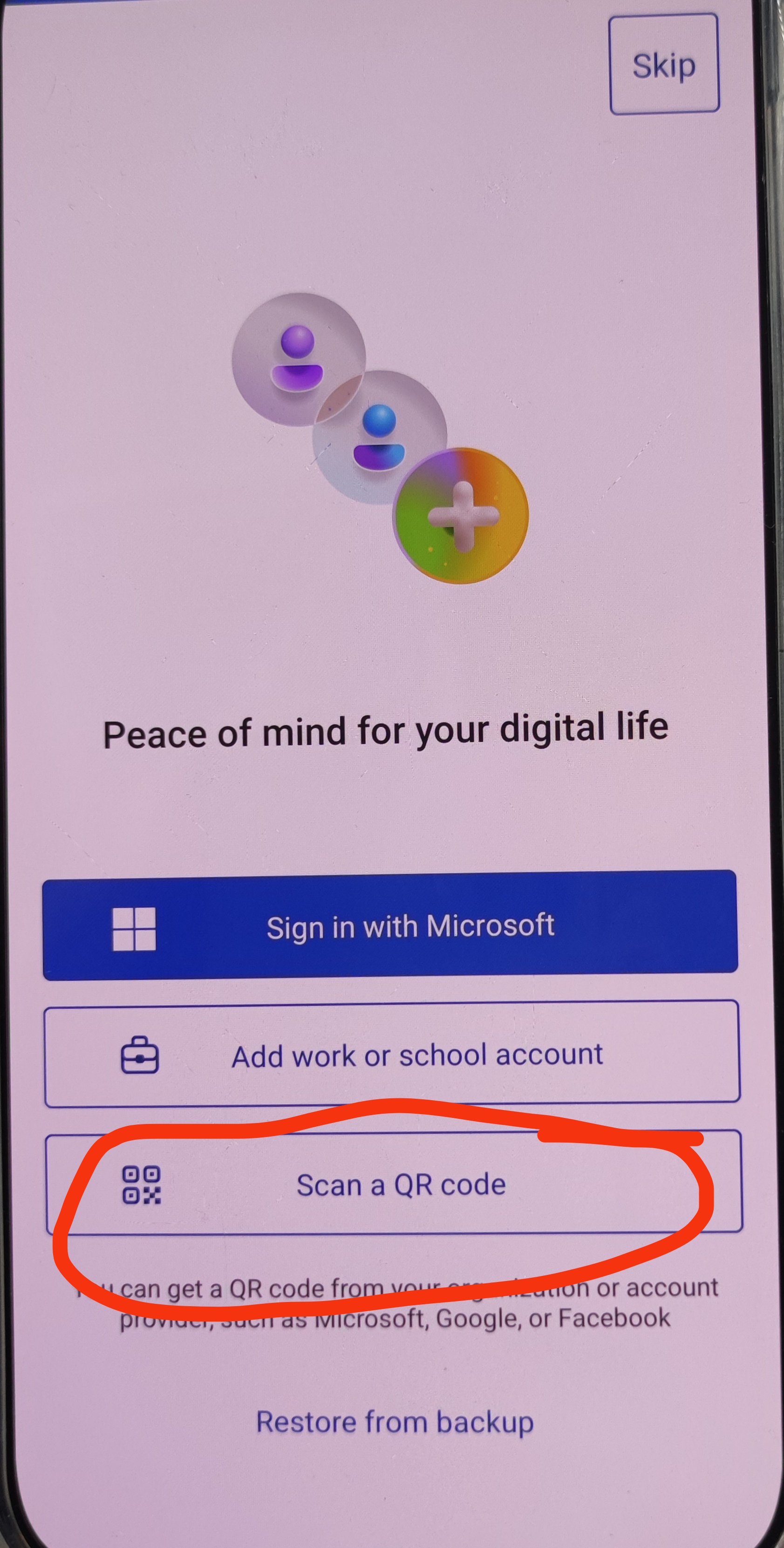

Scan the code and directly bind it. Click the arrow to view your Google verification code

Step 5: At the bottom of the Epay client settings page, enter the "Email Verification Code" and the dynamically updated six digit "Google Verification Code", click the "Next" button to submit successfully, and Google Verification will be bound successfully.

Step 6: The successful binding interface is shown in the figure. We suggest enabling Google captcha to achieve security protection

If you encounter any problems during the operation, you can click on "We Are Here" in the bottom right corner of the page to contact online customer service, or send an email to service@epay.com The epayservice@epay.com We will help you solve it!